


cmyk-file-from-canva
How to Download a Print-Ready CMYK File from Canva
Follow this step-by-step guide to export a professional, print-ready PDF using CMYK color settings. These steps help ensure your file meets commercial printing standards. If you do not have a Pro account you will need to share your design with aaron@allseasonssigns.com
Before You Start
- Your design layout and text are final
- The document size matches your printer’s specifications
- You’re ready to export for professional printing
Good to know: CMYK output is only available when exporting as PDF Print.
Step 1: Open Your Design
- Log in to Canva
- Open the design you want to export
- Confirm the canvas size is correct
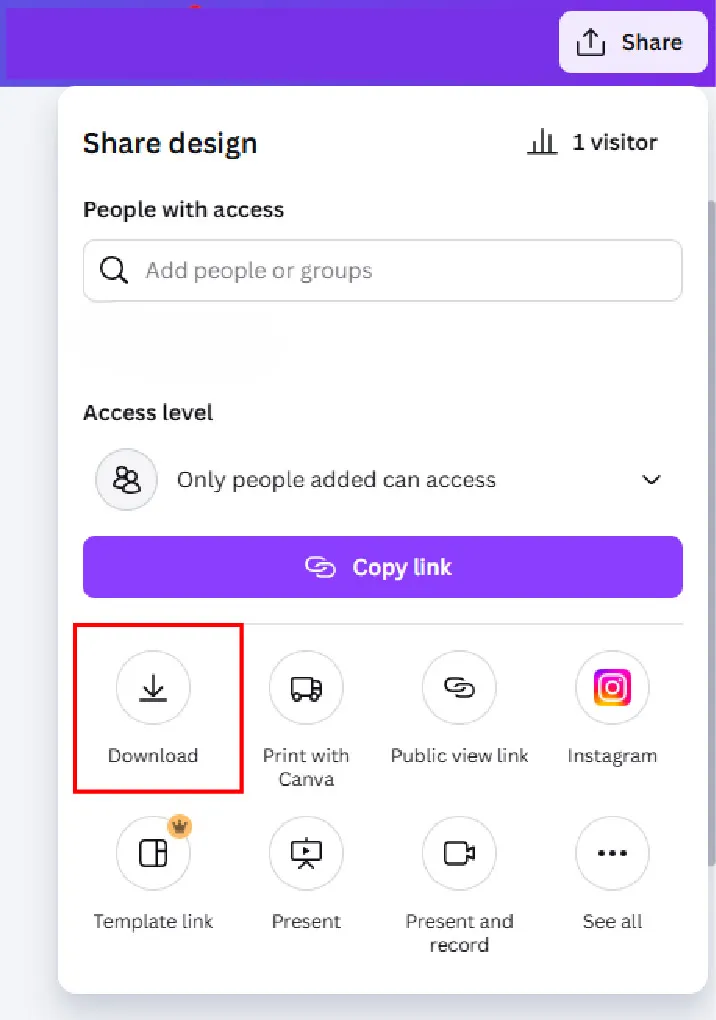
Step 2: Open the Download Menu
- Select Share in the top-right corner
- Choose Download
Step 3: Choose PDF Print
- Open the File type dropdown
- Select PDF Print
- Check Crop marks and bleed
- Scroll to Color Profile
- Select CMYK (Best for professional printing)
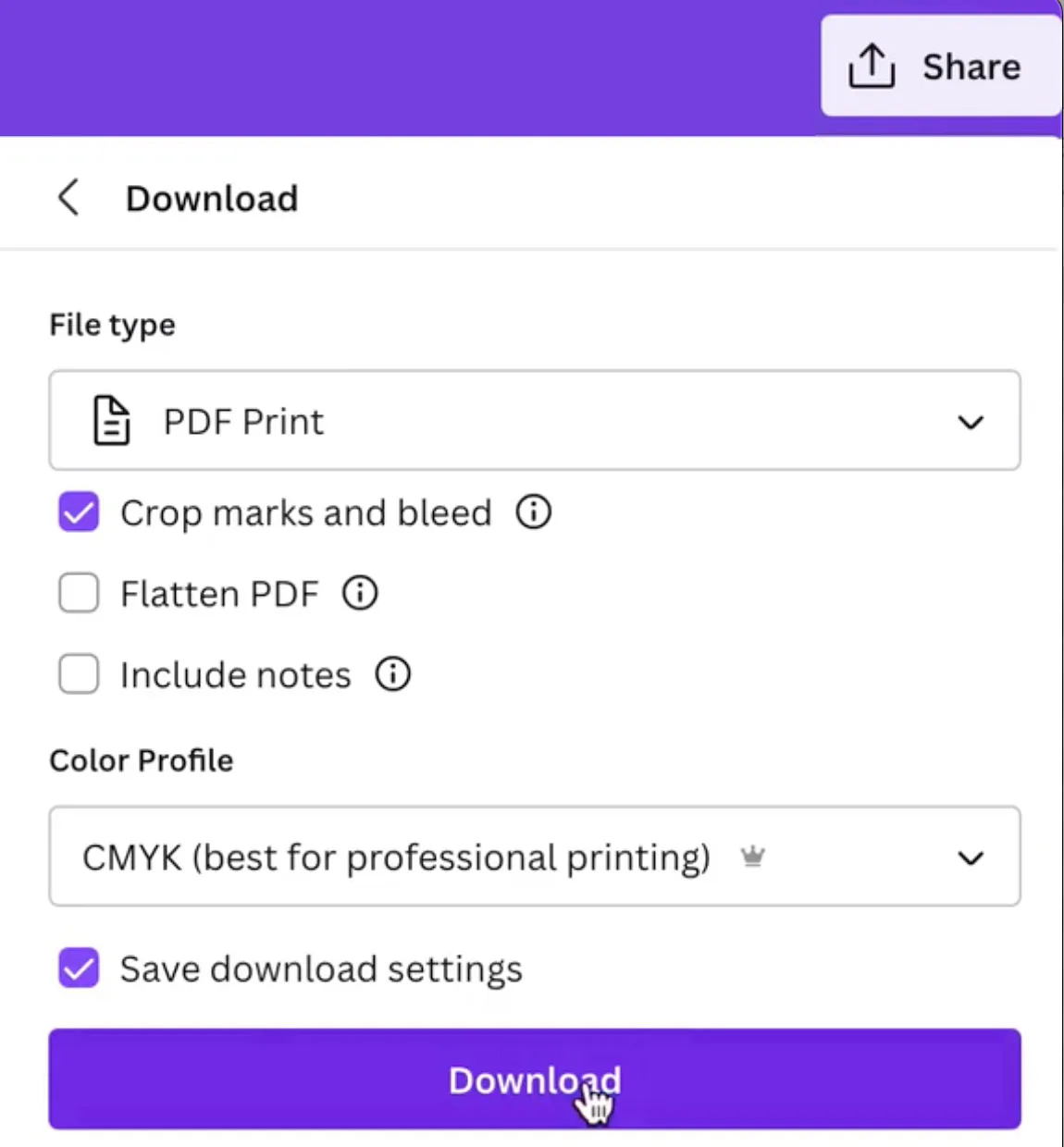
Step 6: Download the File
- Select Download
- Wait for the PDF to generate
- Save the file to your device
Optional: Final Check Before Printing
- Color mode is CMYK
- Bleed and crop marks are visible
- No font or layout changes
Print-Ready Checklist
- PDF Print format selected
- CMYK color profile enabled
- Correct document size
- Bleed and crop marks added if required
- Final proof approved
